Developer Blog

Tipps und Tricks für Entwickler und IT-Interessierte

Daily: How to transcribe Videos

Using Commandline and Python

Option 1: Transcribe with Whisper (official)

pip install git+https://github.com/openai/whisper.git

Then run:

whisper demo.mp4 --model medium --language auto --output_format txt

Optional flags:

  • --output_format srt (for subtitles)
  • --language en (to skip language detection)

Create a shell script to transcribe multiple files

#!/usr/bin/env bash

# Loop through all arguments (filenames)
for VIDEO in "$@"; do
    echo "Transcribing: $VIDEO"
    whisper "$VIDEO" --model medium --language en --output_format txt
done

Option 2: Transcribe with faster-whisper (much faster on CPU or GPU)

pip install faster-whisper

Run via Python:

import sys
from faster_whisper import WhisperModel

VIDEO=sys.arg[1]

model = WhisperModel("medium", device="cpu")  # or "cuda" for GPU
segments, info = model.transcribe(VIDEO)

with open("transcript.txt", "w") as f:
    for s in segments:
        f.write(f"{s.start:.2f} --> {s.end:.2f}: {s.text.strip()}\n")

Optional: Convert to audio (if needed)

If transcription fails or is slow, extract audio first:

ffmpeg -i your_video.mp4 -ar 16000 -ac 1 -c:a pcm_s16le audio.wav

Then transcribe audio.wav instead.


Problems with numpy

Error when running whisper: A module that was compiled using NumPy 1.x cannot be run in NumPy 2.2.6 as it may crash.

Reason:

The error you’re seeing comes from an incompatibility between NumPy 2.x and some Whisper dependencies that were compiled against NumPy 1.x.

Solution: Downgrade NumPy

You can fix this by downgrading NumPy to version 1.x:

pip install "numpy<2"

Then run Whisper again:

whisper demo.mp4 --model medium --language auto --output_format txt

Hide warning UserWarning: FP16 is not supported on CPU; using FP32 instead

Option 1: Suppress all Python warnings (quick + global)

In your terminal or script, set the environment variable:

PYTHONWARNINGS="ignore" whisper dmeo.mp4 --model medium<br></code>

Or, in Python code:

import warnings

warnings.filterwarnings("ignore")

Option 2: Suppress only that specific warning

If you’re using faster-whisper in Python and want to filter only that one:

import warnings

warnings.filterwarnings(
    "ignore",
    message="FP16 is not supported on CPU; using FP32 instead"
)

Option 3: Patch the library (if you’re comfortable)

You can find the line in the faster_whisper source code (usually in transcribe.py) that issues the warning and comment it out or remove it:

# warnings.warn("FP16 is not supported on CPU; using FP32 instead")

Not recommended unless you maintain the code.

Daily: VS Code Error NSOSStatusErrorDomain

If you got an NSOSStatusErrorDomain Error, when you start VS Code from the command line

❯ code
[0309/155203.303710:ERROR:codesign_util.cc(108)] SecCodeCheckValidity: Error Domain=NSOSStatusErrorDomain Code=-67062 "(null)" (-67062)

You should do this: codesign --force --deep --sign -

❯ which code
/Users/Shared/VSCode/Default/Visual Studio Code - Insiders.app/Contents/Resources/app/bin/code

❯ codesign --force --deep --sign - "/Users/Shared/VSCode/Default/Visual Studio Code - Insiders.app"
/Users/Shared/VSCode/ralphg/Visual Studio Code - Insiders.app: replacing existing signature

❯ code -v
1.88.0-insider
19ecb4b8337d0871f0a204853003a609d716b04e
x64

Daily Azure: Migrate a Storge Account

TL;DR

Migration is done via azcopy:

  • download souce container to local folder
  • upload local folder to destination container

Get AzCopy

Here is the script install-azcopy.ps1:

# Download and extract

#
$URI = "https://aka.ms/downloadazcopy-v10-windows"
$DST = "~\AppData\Local\Programs\AZCopy\"

Invoke-WebRequest -Uri $URI -OutFile AzCopy.zip -UseBasicParsing
Expand-Archive ./AzCopy.zip ./AzCopy -Force

# Move AzCopy
mkdir ~\AppData\Local\Programs\AZCopy
Get-ChildItem ./AzCopy/*/azcopy.exe | Move-Item -Destination "~\$DEST"

# Add AzCopy to PATH
$userenv = (Get-ItemProperty -Path 'HKCU:\Environment' -Name Path).path
$newPath = "$userenv;
New-ItemProperty -Path 'HKCU:\Environment' -Name Path -Value $newPath -Force

# Clean the kitchen
del -Force AzCopy.zip
del -Force -Recurse .\AzCopy\

Copy Folder

param (
    $FOLDER = "",

    [Parameter(Mandatory=$false)]
    [string]$TYPE   = "latest",

    [Parameter(Mandatory=$false)]
    [switch]$LOGIN
)

if ($TYPE -eq "latest") {
    $SRC_ROOT="<latest-folder>"
    $DST_ROOT="latest"
} else {
    $SRC_ROOT="<history-folder>"
    $DST_ROOT="history"
}


$SRC_ACCCOUNT = "<source storage account>";
$DST_ACCCOUNT = "<destination storage account>";

$SRC_CONTAINER = "<source container>"
$DST_CONTAINER = "<destination container>"


$SRC_URL      = "https://${SRC_ACCCOUNT}.blob.core.windows.net/$SRC_CONTAINER/$SRC_ROOT/$FOLDER/"
$DST_URL      = "https://${DST_ACCCOUNT}.blob.core.windows.net/$DST_CONTAINER/$DST_ROOT/"

$TMP_FLDR     = "C:\TMP\Downloads"

Write-Host  "== Copy     '$FOLDER'"
Write-Host "       from  $SRC_URL"
Write-Host  "        to  $DST_URL"

#

if ($LOGIN) {
    $ENV:AZCOPY_CRED_TYPE = "OAuthToken";
    $ENV:AZCOPY_CONCURRENCY_VALUE = "AUTO";

    azcopy login
}

Write-Host  "== Download ======================================================"
Write-Host "       from  $SRC_URL"
Write-Host  "        to  $TMP_FLDR\$CONTAINER"

azcopy copy         $SRC_URL                                                                                      `
                    $TMP_FLDR                                                                                     `
                    --trusted-microsoft-suffixes=${SRC_ACCCOUNT}.blob.core.windows.net                            `
                    --overwrite=true                                                                              `
                    --check-md5=FailIfDifferent                                                                   `
                    --from-to=BlobLocal                                                                           `
                    --recursive                                                                                   `
                    --log-level=ERROR

# Upload
Write-Host  "== Upload   ======================================================"
Write-Host  "      from  $TMP_FLDR\$CONTAINER"
Write-Host  "        to  $DST_URL"

azcopy copy         $TMP_FLDR\$CONTAINER                         `
                    $DST_URL                                     `
                    --overwrite=true                             `
                    --from-to=LocalBlob                          `
                    --blob-type BlockBlob                        `
                    --follow-symlinks                            `
                    --check-length=true                          `
                    --put-md5                                    `
                    --follow-symlinks                            `
                    --disable-auto-decoding=false                `
                    --recursive                                  `
                    --log-level=ERROR

Call the script

First call should use -login to authenticate

.\copy.ps1 demo-folder-1 -login

Then, following commands dont need the login

.\copy.ps1 demo-folder-2

Daily: Running Microsoft SQL-Server in Docker

Introduction

Using Docker is an effortless way to launch and run an application/server software without annoying installation hassles: Just run the image and you’re done.

Even if it’s quite an uncomplicated way of looking at it, in many cases it works just like that.

So, let’s start with using Microsoft SQL Server as a database backend. We will use a docker image from Microsoft. Look here to find out more.

docker	run                                       \
			--name mssql-server       \
			--memory 4294967296       \	
			-e "ACCEPT_EULA=Y"        \
			-e "SA_PASSWORD=secret"   \
			-p 1433:1433              \
			mcr.microsoft.com/mssql/server:2019-latestles

FAQ

Error: program requires a machine with at least 2000 megabytes of memory

Start the docker container as described on the Docker Hub Page: How to use this Image

❯ docker run -e "ACCEPT_EULA=Y" -e "SA_PASSWORD=secret" -p 1433:1433 mcr.microsoft.com/mssql/server:2022-latest

Depending on how your docker environment is configured, this could bring up an error:

SQL Server 2019 will run as non-root by default.
This container is running as user mssql.
To learn more visit https://go.microsoft.com/fwlink/?linkid=2099216.
sqlservr: This program requires a machine with at least 2000 megabytes of memory.
/opt/mssql/bin/sqlservr: This program requires a machine with at least 2000 megabytes of memory.

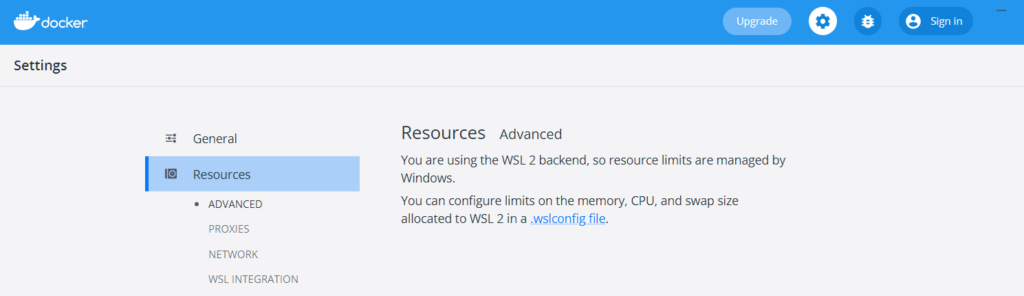
As the error message states, the MS SQL server needs at least 2g of RAM. So, you must assign your Docker VMs more memory. This is configured in the Docker Dashboard.

Hint: Docker has two ways of running containers:

  • using Windows Container
  • using WSL (Windows Subsystem for Linux)

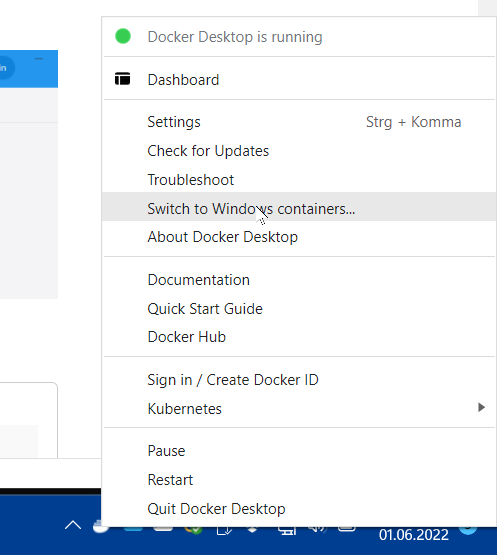
You can change the way with the context menu of the docker symbol in the task bar:

With Linux Containers (using WSL as backend), you must configure the containers via a file .wslconfig.

This file is in the folder defined by the environment variable

To open the file, run the command:

From Command Promptnotepad

Edit the content and change the memory setting

[wsl2]
memory=3GB

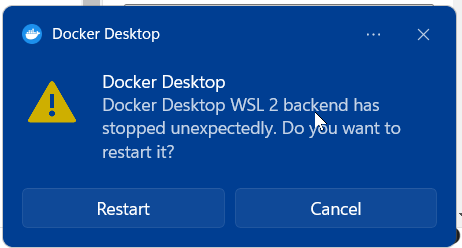
Restart WSL with the new settings.

❯ wsl --shutdown

Start Container again, now everything should work

❯ docker run -e "ACCEPT_EULA=Y" -e "SA_PASSWORD=secret" -p 1433:1433 mcr.microsoft.com/mssql/server:2022-latest

Daily: Build a Development Environment with Docker and VS Code

Introduction

Working with different software (samples, compilers, demos) always requires an adequate environment.

Because i don’t want to pollute my normal environment (my running PC), i decided to use a virtual environment with Docker.

Luckily, VS Code supports this by using remote containers and working fully within these containers.

The Files

.devcontainer\devcontainer.json

{
	"name": "Prolog Environment",

	"dockerComposeFile": [
		"docker-compose.yml"
	],

	"service": "app",
	"workspaceFolder": "/workspace",

	"settings": {},
	"extensions": []
}

.devcontainer\docker-compose.yml

version: '3.8'
services:
  app:
    
    build:
        context: .
        dockerfile: Dockerfile

    container_name: pws_prolog

    volumes:
        - ../workspace:/workspace:cached

    # Overrides default command so things don't shut down after the process ends.
    command: /bin/sh -c "while sleep 1000; do :; done"
 

.devcontainer\Dockerfile

#------------------------------------------------------------------------------
# STAGE 1:
#------------------------------------------------------------------------------
FROM ubuntu:latest as base_nodejs

# Configure Timezone
ENV TZ 'Europe/Berlin'

RUN echo $TZ > /etc/timezone 

RUN    apt-get update \
    && apt-get install -y tzdata \
    && rm /etc/localtime \
    && ln -snf /usr/share/zoneinfo/$TZ /etc/localtime \
    && dpkg-reconfigure -f noninteractive tzdata \
    && apt-get clean

#
RUN apt-get install --yes build-essential curl sudo git vim

# Create user
RUN    groupadd work -g 1000 \
    && adduser user --uid 1000 --gid 1000 --home /workspace --disabled-password --gecos User

# Setup sudo
RUN echo '

# Install Prolog
RUN  apt-get -y install swi-prolog

#
USER user

VOLUME [ "/workspace" ]
WORKDIR /workspace

CMD ["/bin/bash"]

The Explanation

Copyright © 2025 | Powered by WordPress | Aasta Blog theme by ThemeArile