

Power Shell | Cookbook
Inhaltsverzeichnis
Scripts
Parameter in a Powershell Script
param (
    [Parameter(Mandatory=$true)]  [string] $folder = "",
    [Parameter(Mandatory=$false)] [string] $type,
    [Parameter(Mandatory=$false)] [switch] $migrate,
    [Parameter(Mandatory=$false)] [switch] $help
)
Call the Script
.\script.ps1 foldername
.\script.ps1 foldername -type=folder

.\script.ps1 foldername -type=folder -migrate
Parameter Debug and Verbose
This parameter could not be defined in a script, because they are already present.
param (
    [Parameter(Mandatory=$false)] [switch] $debug
)
.\using_parameter.ps1 : Ein Parameter mit dem Namen "Debug" wurde mehrfach für den Befehl definiert.
In Zeile:1 Zeichen:1
+ .\using_parameter.ps1
+ ~~~~~~~~~~~~~~~~~~~~~
+ CategoryInfo : MetadataError: (:) [], MetadataException
+ FullyQualifiedErrorId : ParameterNameAlreadyExistsForCommandTo access their values, use
param (
    [Parameter(Mandatory=$false)] [switch] $help
)

$debug   = $PSBoundParameters.ContainsKey('Debug')
$verbose = $PSBoundParameters.ContainsKey('Verbose')

Write-Host "help    = $help"
Write-Host "debug   = $debug"
Write-Host "verbose = $verbose"
> .\using_parameter.ps1 -debug -help help = True debug = True verbose = False > .\using_parameter.ps1 -debug help = False debug = True verbose = False > .\using_parameter.ps1 -debug -verbose help = False debug = True verbose = True
String
Converting String to TitleCase
function toTitleCase($string) {
    return $string.substring(0,1).toupper()+$string.substring(1).tolower()

}
Filesystem
List of Files in a Folder
| Command | Description |
|---|---|
Get-ChildItem | Folders and Files |
Get-ChildItem -Directory | Only Folders |
Get-ChildItem -File | Only Files |
Get-ChildItem -Recurse -Directory | Only Folders, Recursive |
Get-ChildItem -Recurse -File | Only Files, Recursive |
(ls -r *.txt).fullname
Get-ChildItem -recurse -Filter .editorconfig -path . | % { $_.fullname }dir -Path . -Filter ProfileInformationController* -Recurse | %{$_.FullName}Counting Files
| Command | Description |
|---|---|
(Get-ChildItem | Measure-Object).Count | Count the files and folders |
(Get-ChildItem -Directory | Measure-Object).Count | Only Folders |
(Get-ChildItem -File | Measure-Object).Count | Only Files |
(Get-ChildItem -Recurse -Directory | Measure-Object).Count | Only Folders, Recursive |
(Get-ChildItem -Recurse -File | Measure-Object).Count | Only Files, Recursive |
Using Scripting.FileSystemObject
$objFSO = New-Object -com  Scripting.FileSystemObject
$objFSO.GetFolder($folder).Files.Count
Find a Folders within a Folder (not recursive)
(Get-ChildItem --Attributes Directory).Name
Run Command for each Folder
(Get-ChildItem -Attributes Directory).Name | % { <COMMAND> $_ }With Enumerator
[IO.Directory]::EnumerateFiles($folder) | ForEach-Object {
    Write-Host $_
}
Find all folders with Pattern
Get-ChildItem -recurse -depth 2 -directory -path ..\packages_flutter | `
Where-Object { $_.FullName -match 'example' }                        | `
% { $_.FullName .split('\')[-2] } | `
% { junction $_  ..\packages_flutter\packages\$_\example }
Delete files with pattern
Get-ChildItem *.code -recurse | foreach { Remove-Item -Path $_.FullName }Get-ChildItem -Path C:Temp -Include *.* -File -Recurse | foreach { $_.Delete()}Files
Filename and Extension of File with Split-Path
Filename
Split-Path -Path <PATH> -Leaf
Folder
Split-Path -Path <PATH>
Extension
Split-Path -Path <PATH> -Extension
Create File
New-Item new.txt -type file
Loop through entries of a textfile
Get-Content list-of-folders | Where-Object {$_ -NotMatch "#.*" } | ForEach-Object {
    .\check_folder.ps1$_
    # Write-Host "Weiter -->" -NoNewLine
    # $key = $Host.UI.RawUI.ReadKey()
}
Loop through results from Select-String
Here is an example that greps for a string and uses the results in a loop to determine if some action should be taken
$pattern = "powershell"
$files = Select-String -Path "d:\script\*.txt" -Pattern $pattern
foreach ($file in $files) {
   $filename=$file.Filename
   $item = get-item $file.Path
    "File '{0}' matches the pattern '{1}'" -f $item.FullName, $pattern
    "It was last modified on {0}" -f $item.LastWriteTime

   $response = Read-Host -Prompt "Set the archive bit on this file?"
   If ($response -eq 'Y') {
      $item.attributes="Archive"
   }
}
Check if a file exist
Test-Path $PROFILE
Searching in Files
Get-ChildItem -Recurse | Select-String "dummy" -List | Select Path
Get-ChildItem -Recurse *.sql | Select-String "create .*_tab_" | Select-Object -Unique Path
Select-String -path *.txt -pattern PowerShell

Select-String -path *.txt -pattern PowerShell -notmatch
Parsing Files
Get first line of output
$eventResult.Split([Environment]::NewLine) | Select -First 1
Web
Download Web-Page
Invoke-WebRequest -Uri <link>
List all Links
$response = Invoke-WebRequest -Uri <link>
$response.links | Select -Expand href
List all Links with filtering href by RegEx
$response.Links | Where-Object {$_.href -like "*videos*" } | ForEach-Object { $_.href }List all Links with filtering class name by RegEx
$response.Links | Where-Object {$_.class -eq "page-numbers"} | Format-List innerText, hrefDownload and Install Visual Studio Code in portable Mode
$FOLDER=Get-Date -Format "yyyy-MM-dd-HH-mm"

Write-Host "Create link for folder $FOLDER"


# Download
# https://code.visualstudio.com/sha/download?build=stable&os=win32-x64-archive
# https://code.visualstudio.com/sha/download?build=insider&os=win32-x64-archive

$LINK="https://code.visualstudio.com/sha/download?build=insider&os=win32-x64-archive"
$FILE="vscode-insider.zip"

if (Test-Path "$FILE") {
	Remove-Item "$FILE"
}

Invoke-WebRequest "$LINK" -OutFile "$FILE"

Expand-Archive "$FILE" "$FOLDER"

if (Test-Path $FOLDER\data)
{
	Remove-Item $FOLDER\data
}


if (Test-Path code) { Remove-Item code }

# Using junction from SysInternalsSuite to create symlinks

junction code $FOLDER
junction code\data data
Environment
Show env variables
gci env:* | Sort-Object Name
Show env variables with name pattern
gci env: | Where name -like '*HOME
Processes
List Processes and Path
Get-Process | Select-Object Path
Show processes using a specific port
Get-Process -Id (Get-NetTCPConnection -LocalPort YourPortNumberHere).OwningProcess
Network
Pipeline
Parse out from command
$REPOSITORY=<URL of Repository>
git branch -r | ForEach-Object { Write-Output "git clone -b $_ $REPOSITORY $_" } | Out-File -FilePath .clone-all-branches
Permissions
Show current policy
Get-ExecutionPolicy
Allow custom scripts to execute
Set-ExecutionPolicy -Scope CurrentUser unrestricted
Security
Self-Sign a script
Step 1: Create your code signing certificate
New-SelfSignedCertificate -DnsName user@via-internet.de `
                          -CertStoreLocation Cert:\currentuser\my  `
                          -Subject "CN=Local Code Signing"  `
                          -KeyAlgorithm RSA  `
                          -KeyLength 2048  `
                          -Provider "Microsoft Enhanced RSA and AES Cryptographic Provider"  `
                          -KeyExportPolicy Exportable  `
                          -KeyUsage DigitalSignature  `
                          -Type CodeSigningCert
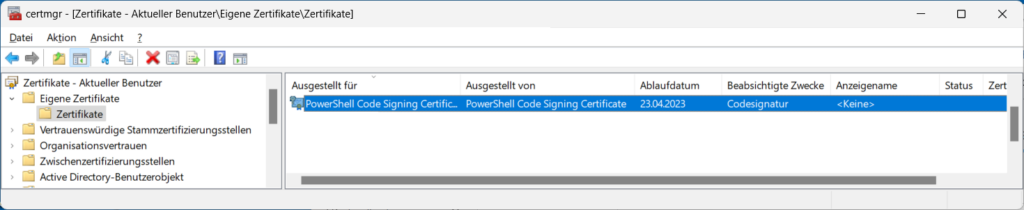
Step 2: Open the Certificate Manager for Current User
certmgr /s my
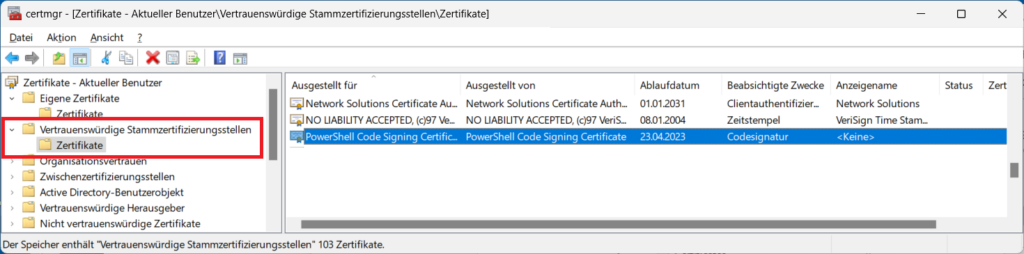
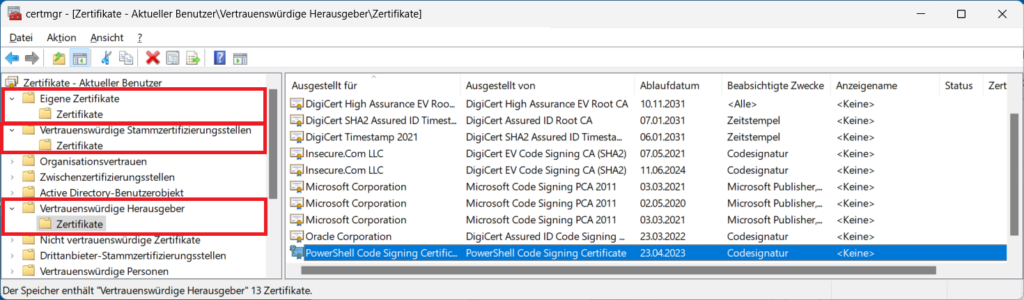
Step 3: Copy the new certificate to the appropriate cert stores
From Personal folder into Trusted Root Certification Authorities and into Trusted Publishers stores.
German: Von Eigene Zertifikate nach Vertrauenswürdige Stammzertifizierungsstellen und Vertrauenswürdige Herausgeber
Step 4: Sign your PowerShell script with the new cert
$CERT=@(Get-ChildItem cert:\CurrentUser\My -CodeSigning)[1]
Set-AuthenticodeSignature .\HelloWorld.ps1 $CERT
Or
❯ Set-AuthenticodeSignature -FilePath .\HelloWorld.ps1 -Certificate (Get-ChildItem -Path Cert:CurrentUserMy -CodeSigningCert)
Final Check
❯ Get-AuthenticodeSignature .\HelloWorld.ps1
Github
Download Repositories
gh repo list <github username> --limit 1000 | % { $_.split("`t")[0] }| Select-String -NoEmphasis <pattern> | % { git clone --depth 1 https://github.com/$_ }Profiles
Different PowerShell profiles
| Description | Path |
| Current User, Current Host – console | $Home[My ]DocumentsWindowsPowerShellProfile.ps1 |
| Current User, All Hosts | $Home[My ]DocumentsProfile.ps1 |
| All Users, Current Host – console | $PsHomeMicrosoft.PowerShell_profile.ps1 |
| All Users, All Hosts | $PsHomeProfile.ps1 |
| Current user, Current Host – ISE | $Home[My ]DocumentsWindowsPowerShellMicrosoft.P owerShellISE_profile.ps1 |
| All users, Current Host – ISE | $PsHomeMicrosoft.PowerShellISE_profile.ps1 |
Show Path for all profiles
$PROFILE | Format-List * -Force
Create a new profile
New-Item $PROFILE.CurrentUserAllHosts -ItemType file -Force
Customizing
Theming
Install Posh-Git and Oh-My-Posh.
Install-Module posh-git   -Scope CurrentUser
Install-Module oh-my-posh -Scope CurrentUser
Install-Module -Name PSReadLine -AllowPrerelease -Scope CurrentUser -Force -SkipPublisherCheck
Then run “notepad $PROFILE” and add these lines to the end:
Import-Module posh-git
Import-Module oh-my-posh

Set-Theme Paradox
Set a custom theme
Import-Module posh-git
Import-Module oh-my-posh
Set-Theme Paradox
Show current theme settings
$ThemeSettings
$ThemeSettings.CurrentThemeLocation
Customize Prompt
Show current Path
function prompt
{
    "PS " + $(get-location) + "> "
}
Randor Color
function prompt
{
    $random = new-object random
    $color=[System.ConsoleColor]$random.next(1,16)
    Write-Host ("PS " + $(get-location) +">") -nonewline -foregroundcolor $color
    return " "
}
Display current time at the end of prompt line (this will mess up you console buffer)
function prompt
{
    $oldposition = $host.ui.rawui.CursorPosition
    $Endline = $oldposition
    $Endline.X+=60
    $host.ui.rawui.CursorPosition = $Endline
    Write-Host $(get-date).Tostring("yyyy-MM-dd HH:mm:ss")
    $host.ui.rawui.CursorPosition = $oldposition
    Write-Host ("PS " + $(get-location) +">") -nonewline -foregroundcolor Magenta
    return " "
}
Show current user, host, current line number
$global:CurrentUser = [System.Security.Principal.WindowsIdentity]::GetCurrent()
function prompt
{
    $host.ui.rawui.WindowTitle = $CurrentUser.Name + " " + $Host.Name + " " + $Host.Version + " Line: " + $host.UI.RawUI.CursorPosition.Y
    Write-Host ("PS " + $(get-location) +">") -nonewline -foregroundcolor Magenta
    return " "
}
Weitere Anpassungsmöglichkeiten
https://www.norlunn.net/2019/10/07/powershell-customize-the-prompt/
Security
❯ New-SelfSignedCertificate -DnsName user@via-internet.de -CertStoreLocation Cert:CurrentUserMy -Type CodeSigning

   PSParentPath: Microsoft.PowerShell.SecurityCertificate::CurrentUserMy

Thumbprint                                Subject              EnhancedKeyUsageList
----------                                -------              --------------------
4AED871E6DB5FF3E85EB1625C5369DBDB3E120FD  CN=user@via-interne… Codesignatur
❯ Set-AuthenticodeSignature -FilePath demo.ps1 -Certificate (Get-ChildItem -Path Cert:CurrentUserMy -CodeSigningCert)

    Directory: D:TMP

SignerCertificate                         Status                               StatusMessage                     Path
-----------------                         ------                               -------------                     ----
4AED871E6DB5FF3E85EB1625C5369DBDB3E120FD  Valid                                Signature verified.               demo.ps1
Final Check
❯ Get-AuthenticodeSignature .demo.ps1

    Directory: D:CLOUDEnvironmentsKeycloakKeycloak12.0.1bin

SignerCertificate                         Status                                StatusMessage                    Path
-----------------                         ------                                -------------                    ---
4AED871E6DB5FF3E85EB1625C5369DBDB3E120FD  Valid                                 Signature verified.              demo.ps1
From Bash to Powershell
Alias for WHICH command
❯ (get-command FILE.EXE).Path
❯ Set-Alias where Get-Command
❯ where FILE.EXE
Snippets
Formatting
0..31 | ForEach-Object {
    "{0,6}`t{1,6}`t{2,5}`t0x{0:X4}" -f $_,[Convert]::ToString($_,2), [Convert]::ToString($_,8)
}
Select a Service By Name (Partial Match)
> Get-Service | Select-Object -ExpandProperty Name | Select-String -pattern 'ws'
CURL For Powershell
> (Invoke-WebRequest www.google.com).Content
List Environment Variables
> gci env: | sort name
Get PS Version
> $PSVersionTable
List Installed Programs
> Get-WmiObject -Class Win32_Product
Colored Header in Output
$prefix ="$prefix                   ".Substring(0,6)
$title  ="$title                    ".Substring(0,15)

$line = "$prefix ${title}: ${line}"
$fill = " " * ([Console]::WindowWidth - $line.length)
Write-Host "${line}${fill}"  -ForegroundColor White -BackgroundColor Blue -NoNewline
Leave a Reply