Developer Blog

Tipps und Tricks für Entwickler und IT-Interessierte

Microsoft Word | Unbenutzte Formatierungen entfernen

Wie oft passiert es, dann man Text aus einer anderen Quelle kopiert (meist von Webseiten aus dem Internet) und in ein bestehendes oder neues Dokument einfügt. Und plötzlich sind eine Vielzahl von neuen Formatvorlagen vorhanden.

Viele davon werden dabei nicht einmal verwendet:

Um diese unnötigen Formatvorlagen zu entfernen kann man ein einfaches Makro verwenden:

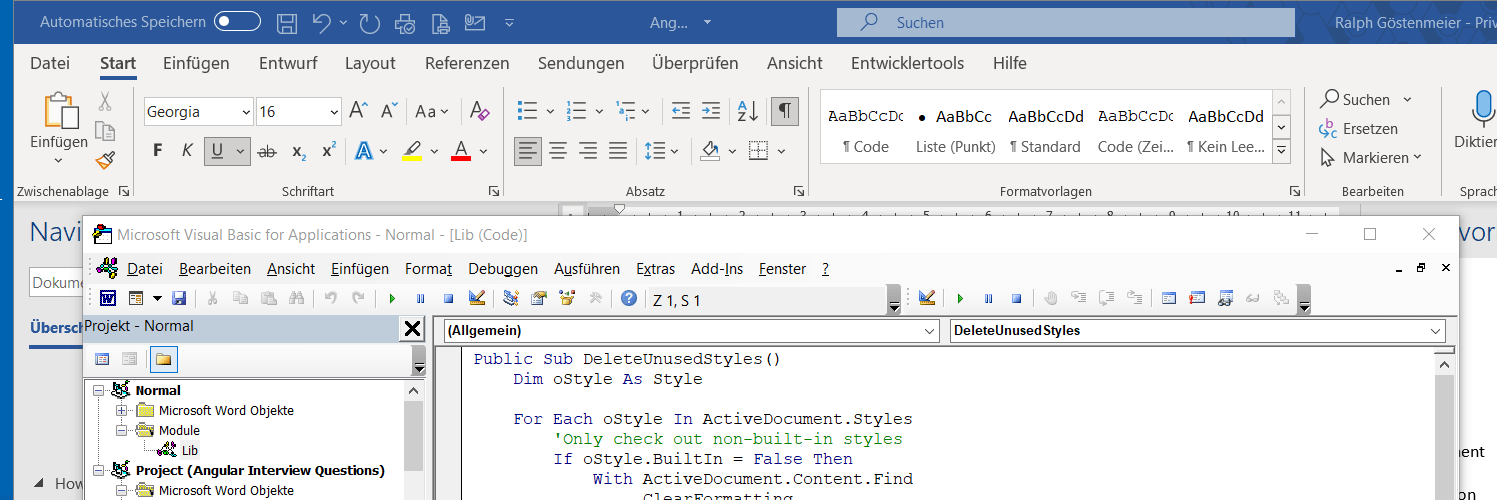
In Word einfach ALT-F11 drücken (oder im Menu Entwicklertool auf Makros, und dann Bearbeiten)

In der Projektansicht sollten dann mindestens zwei Dokumente geöfnet sein:

  • die Formatvorlage Normal.dot
  • das aktuelle Dokument, das sie gerade bearbeiten

Sollten Sie das nachfolgende Makro als hilfreiche empfinde und auch in neuen Dokumenten verwenden wollen, dann speichern Sie es einfach in der Formatvorlage Normal.dot ab.

Erstellen Sie hierzu unter dem Ordner Module einfach ein neues Modul mit dem Namen Lib:

Ändern Sie dann den Namen auf Lib

Danach fügen Sie im Editor das nachfolgende Makro ein:

Public Sub DeleteUnusedStyles()
    Dim oStyle As Style

    For Each oStyle In ActiveDocument.Styles
        'Only check out non-built-in styles
        If oStyle.BuiltIn = False Then
            With ActiveDocument.Content.Find
                .ClearFormatting
                .Style = oStyle.NameLocal
                .Execute FindText:="", Format:=True
                If .Found = False Then
                    oStyle.Delete
                End If
            End With
        End If
    Next oStyle
End Sub

Jetzt können Sie das Makro jederzeit aufrufen über Entwicklertools / Makros / Ausführen

Laravel | Benutzermodel erweitern

Laravel bietet mit Eloquent ORM ein leistungsfähiges Datenbank-Framework.

Mit Hilfe von Modellen werden die Datenbankobjekte (z. B. Benutzer) definiert. Diese Objekte können dabei einfach durch zusätzliche Felder erweitert werden.

Im nachfolgenden Beispiel wollen wir das vorhandene Objekt User einer initialen Laravel-Installation durch ein Feld username erweitern.

Neues Feld den Benutzermodel hinzufügen

Erstellen eines Datenbank-Migrationsskriptes, das unser gewünschtes Feld zur Tabelle users hinzufügt.

php artisan make:migration add_column_username_to_users_table --table users

Hinzufügen des Felder Username in der neu erstellten Datei. Dies liegt unter database/migrations.

    public function up()
    {
        Schema::table('users', function (Blueprint $table) {
            $table->string('username')->nullable();
        });
    }

    public function down()
    {
        Schema::table('users', function (Blueprint $table) {
            $table->dropColumn('username');
        });
    }

Hinzufügen des Feldes Username im Datenbankmodel User in der Datei app\Models\User.php

    protected $fillable = [
        'name',
        'email',
        'password',
        'username'
    ];

Datenbank aktualisieren.

Dieser Schritt entfernt alle Tabellen und erstellt sie neu. Dadurch gehen natürlich alle bereits vorhandenen Daten verloren!

❯ php artisan migrate:fresh --seed
Dropped all tables successfully.
Migration table created successfully.
Migrating: 2014_10_12_000000_create_users_table
Migrated:  2014_10_12_000000_create_users_table (2,326.47ms)
Migrating: 2014_10_12_100000_create_password_resets_table
Migrated:  2014_10_12_100000_create_password_resets_table (1,789.28ms)
Migrating: 2014_10_12_200000_add_two_factor_columns_to_users_table
Migrated:  2014_10_12_200000_add_two_factor_columns_to_users_table (1,010.74ms)
Migrating: 2019_08_19_000000_create_failed_jobs_table
Migrated:  2019_08_19_000000_create_failed_jobs_table (2,399.99ms)
Migrating: 2019_12_14_000001_create_personal_access_tokens_table
Migrated:  2019_12_14_000001_create_personal_access_tokens_table (2,313.60ms)
Migrating: 2021_06_19_085151_create_sessions_table
Migrated:  2021_06_19_085151_create_sessions_table (5,279.76ms)
Migrating: 2021_06_19_102316_add_username_to_users_table
Migrated:  2021_06_19_102316_add_username_to_users_table (432.59ms)
Database seeding completed successfully.

Erweitern der Frontend Views

Hinzufügen des Feldes Username in der Datei resources\views\profile\edit.blade.php

<x-slot name="form">
   ...

   <!-- Email -->
      ...


   <!-- column username -->
   <div class="form-group row">
      <label for="username" class="col-md-4 col-form-label text-md-right">{{ __('Benutzername') }}</label>

      <div class="col-md-6">
         <input id="username" 
               type="text" 
               class="form-control @error('username') is-invalid @enderror" name="email" 
               value="{{ old('email') ?? auth()->user()->email }}" 
               required autocomplete="email" autofocus>

          @error('username')
          <span class="invalid-feedback" role="alert">
             <strong>{{ $message }}</strong>
          </span>
          @enderror
       </div>
    </div>
 </x-slot>

Anpassen des Controllers

Wir passen die PHP Komponente UpdateUserProfileInformation an, so das die neuen Werte gespeichert werden

app\Actions\Fortify\UpdateUserProfileInformation.php
    public function update($user, array $input)
    {
        ...

        if ($input['email'] !== $user->email &&
            $user instanceof MustVerifyEmail) {
            $this->updateVerifiedUser($user, $input);
        } else {
            $user->forceFill([
                'name' => $input['name'],
                'email' => $input['email'],
                'username' => $input['username'],
            ])->save();
        }
    }

Laravel | Installation der Entwicklungsumgebung

Installation

Voraussetzung für die Verwendung von Laravel ist eine Web-Server, der eine PHP Umgebung unterstützt bzw bereitstellt.

Eine einfache Umgebung wird durch XAMPP bereitgestellt. Eine Implementierung kann man bei Apache Friends herunterladen.

XAMPP ist hier ein Akronym für X (Beliebiges Betriebssystem) Apache + MariaDB + PHP + Perl

Im Laufe dieses Post werden mehrerer Pakete und Programme installiert. Alle werden unter einem Startorder installiert. Diese benennen wir im nachfolgenden mit $LARAVEL_TUTORIAL_ROOT

mkdir C:\LARAVEL_TUTORIAL

Setzen der Umgebungsvariablen unter Windows Command Line cmd

set LARAVEL_TUTORIAL_ROOT="C:\LARAVEL_TUTORIAL"

Setzen der Umgebungsvariablen unter Poweshell

$ENV:LARAVEL_TUTORIAL_ROOT="C:\LARAVEL_TUTOPRIAL"

Installation XAMPP

Download des Installer: https://www.apachefriends.org/index.html

Um mehrerer Versionen parallel zu installieren, stehen ZIP-Dateien zur Verfügung. Die aktuelle Version ist 8.2.0

  • Zip Datei herunterladen: $LARAVEL_TUTORIAL_ROOT\xampp
  • im Zielverzeichnis extrahieren
  • setup_xamp.bat aufrufen

Installation mit dem Composer

Zielverzeichnis erstellen

mkdir $LARAVEL_TUTORIAL_ROOT\composer
cd $LARAVEL_TUTORIAL_ROOT\composer

Diese Verzeichnis als Umgebungsvariable festlehen

$ENV:COMPOSER_HOME = $ENV:LARAVEL_TUTORIAL_ROOT\composer
set COMPOSER_HOME=


Composer herunterladen

php -r "copy('https://getcomposer.org/installer', 'composer-setup.php');"
php -r "if (hash_file('sha384', 'composer-setup.php') === '756890a4488ce9024fc62c56153228907f1545c228516cbf63f885e036d37e9a59d27d63f46af1d4d07ee0f76181c7d3') { echo 'Installer verified'; } else { echo 'Installer corrupt'; unlink('composer-setup.php'); } echo PHP_EOL;"
php composer-setup.php
php -r "unlink('composer-setup.php');"

Pfad erweitern um

Fügen Sie die beiden nachfolgenden Pfad ihrer PATH Variablen hinzu:


composer.bat erstellen

Der Composer ist ein PHP Archiv mit der Dateierweiterung phar. Diese Dateien können nicht direkt aufgerufen werden, sondern stellen ein PHP Programm dar. Es muss als über PHP gestartet werden.

Hierzu erstellen wir einfach ein Skript, das diese Aufgabe für uns übernimmt. Erstellen Sie dazu die Datei composer.bat im Verzeichnis

php 


composer.ps1 erstellen

php $env:composer_home\composer.phar $args

composer Tipps und Tricks

Um weniger Meldungen anzuzeigen kann die nachfolgenden Konfigurationseinstellung verwendet werden:

composer global config bin-dir --absolute --quiet

Installation von NodeJS

https://nodejs.org/en/download/

Installation des Laravel Installer

Der Laravel Installer erleichterter das Einrichten und Erstellen neuer Laravel Anwendungen.

Installiert wird er mit Hilfe des Composer:

composer global require "laravel/installer"

Installation einer Beispielanwendung

laravel new blog

Nächste Schritte

Laravel | Installation einer Beispielanwendung

Laravel | Tutorial: Eine Blog erstellen

SAS | Migrate from SAS to Python

Introduction

Cookbook

proc freq

proc freq data=mydata;
    tables myvar / nocol nopercent nocum;
run;
mydata.myvar.value_counts().sort_index()

sort by frequency

proc freq order=freq data=mydata;
	tables myvar / nocol nopercent nocum;
run;
mydata.myvar.value_counts()

with missing

proc freq order=freq data=mydata;
    tables myvar / nocol nopercent nocum missing;
run;
mydata.myvar.value_counts(dropna=False)

proc means

proc means data=mydata n mean std min max p25 median p75;
    var myvar;
run;
mydata.myvar.describe()

more percentiles

proc means data=mydata n mean std min max p1 p5 p10 p25 median p75 p90 p95 p99;
	var myvar;
run;
mydata.myvar.describe(percentiles=[.01, .05, .1, .25, .5, .75, .9, .95, .99])

data step

concatenate datasets

data concatenated;
    set mydata1 mydata2;
run;
concatenated = pandas.concat([mydata1, mydata2])

proc contents

proc contents data=mydata;
run;
mydata.info()

save output

proc contents noprint data=mydata out=contents;
run;
contents = mydata.info()  # check this is right

Misc

number of rows in a datastep

* Try this for size: http://www2.sas.com/proceedings/sugi26/p095-26.pdf;
len(mydata)

MySQL | Getting started

Install

Server

brew install mysql

Prepare

Create Data Directory

mysqld --verbose --initialize --datadir .\data --basedir D:\CLOUD\Environments\MySQL\8.0.22

Start Server

 mysqld --console --datadir .\data --basedir D:\CLOUD\Environments\MySQL\8.0.22

Create Adminuser with password

Change file D:\TMP\init_root.sql with the following content

ALTER USER 'root'@'localhost' IDENTIFIED BY 'NewPassword';

Run

mysqld --console --init-file D:\TMP\init_root.sql --datadir .\data --basedir D:\CLOUD\Environments\MySQL\8.0.22

Ionic | Working with jsPDF

Introduction

The javascript library jsPDF, is a Client-side JavaScript PDF generation for everyone.

With a npm-Module, you can integrate this functionality into your Ionic App.

This Git Repository with the code for this blog is here.

Preparation

Create your empty app

❯ mkdir Ionic_Working-with_jsPDF
❯ cd Ionic_Working-with_jsPDF
❯ ionic start app sidemenu  --type angular
√ Preparing directory .app in 2.63ms
√ Downloading and extracting sidemenu starter in 665.67ms
? Integrate your new app with Capacitor to target native iOS and Android? No
❯ cd app

Install npm Module

❯ npm install        jspdf
❯ npm install @types/jspdf

oder

❯ yarn add        jspdf
❯ yarn add @types/jspdf

Start Editor and serve your app

❯ vscode .
❯ ionic serve

Add new Page for PDF functionality

Create new Page

❯ ionic generate page pages/PDF

Add page to sidemenu

Edit app.components.ts

public appPages = [
	{	title: 'PDF',	url: '/pdf',		icon: print'	},
	{	title: 'Inbox',	url: '/folder/Inbox',	icon: 'mail',	},

Add jsPDF functionality

Add jspfs reference to pages/pdf/pdf.page.ts

import { jsPDF } from 'jspdf';

Create a function for converting to PDF

public downloadPDF() {
	var data = document.getElementById('printcontent') as HTMLElement;

	let pdf = new jsPDF('p', 'mm', 'a4');

	pdf.html(data, {
		callback: (pdf) => {pdf.output('dataurlnewwindow');}
	});
}

Add download button

Change pages/pdf/pdfhtml

<div>
	<input type="button" value="Convert" (click)="downloadPDF()" />
</div>

Summary

A lot more examples could be found in my repository. Just create a starter app with this template and begin to play

Django | Cookbook

Installation

Install current Version (3.2.8)

❯ pip install django==3.2.8

Install next Version (4.0)

❯ pip install --pre django

Check installed version

❯ python -m django --version
❯ django-admin.exe version

First steps

The following steps are based on a summary of the Django Tutorial

Create project

django-admin startproject main
cd working_with_django
python manage.py migrate
python manage.py runserver 8080
python manage.py startapp app_base

Create view

Create view in app_base/views.py

from django.http import HttpResponse

def index(request):
    return HttpResponse("Hello, world. You're at the polls index.")

Add view to app_base/urls.py

from django.urls import path
from . import views

urlpatterns = [
    path('', views.index, name='index'),
]

Add urls to project main/urls.py

from django.contrib import admin
from django.urls import include, path

urlpatterns = [
    path('admin/', admin.site.urls),
    path('app_base/', include('app_base.urls')),
]

Create admin user

$ python manage.py createsuperuser
Username (leave blank to use 'user'): admin
Email address: admin@localhost
Password: 
Password (again): 
Superuser created successfully.

Create data and database

Create database model in app_base/models.py

from django.db import models

class Question(models.Model):
    question_text = models.CharField(max_length=200)
    pub_date = models.DateTimeField('date published')

class Choice(models.Model):
    question = models.ForeignKey(Question, on_delete=models.CASCADE)
    choice_text = models.CharField(max_length=200)
    votes = models.IntegerField(default=0)

Activating models in main/settings.py

INSTALLED_APPS = [
    'app_base.apps.AppBaseConfig',

    'django.contrib.admin',
    'django.contrib.auth',
    'django.contrib.contenttypes',
    'django.contrib.sessions',
    'django.contrib.messages',
    'django.contrib.staticfiles',
]
$ python manage.py makemigrations app_base
$ python manage.py sqlmigrate app_base 0001

Make app modifiable in the admin (app_base/admin.py)

from django.contrib import admin
from .models import Question

admin.site.register(Question)

Writing more views

Create views in app_base/views.py

def detail(request, question_id):
    return HttpResponse("You're looking at question 

def results(request, question_id):
    response = "You're looking at the results of question 
    return HttpResponse(response 

def vote(request, question_id):
    return HttpResponse("You're voting on question 

Add new views into app_base/urls.py

from django.urls import path
from . import views

urlpatterns = [
    path('', views.index, name='index'),

    path('<int:question_id>/', views.detail, name='detail'),
    path('<int:question_id>/results/', views.results, name='results'),
    path('<int:question_id>/vote/', views.vote, name='vote'),
]

Add template in app_base/templates/polls/index.html

{
    <ul>
    {
        <li><a href="/polls/{{ question.id }}/">{{ question.question_text }}</a></li>
    {
    </ul>
{
    <p>No polls are available.</p>
{


Modify view in app_base/views.py

from django.shortcuts import render
...
def index(request):
    latest_question_list = Question.objects.order_by('-pub_date')[:5]
    context = {'latest_question_list': latest_question_list}
    return render(request, 'polls/index.html', context)

Raising a 404 error in app_base/views.py

from django.http import HttpResponse
from django.shortcuts import render, get_object_or_404

from .models import Question
# ...
def detail(request, question_id):
    question = get_object_or_404(Question, pk=question_id)
    return render(request, 'polls/detail.html', {'question': question})

Create template app_base/templates/polls/detail.html

<h1>{{ question.question_text }}</h1>
<ul>
{
    <li>{{ choice.choice_text }}</li>
{
</ul>

Removing hardcoded URLs in app_base/templates/polls/index.html

<li>
   <a href="{
</li>

The way this works is by looking up the URL definition as specified in the app_base/urs.py

...
# the 'name' value as called by the {
path('<int:question_id>/', views.detail, name='detail'),
...

Namespacing URL names in app_base/urls.py

app_name = 'app_base'

urlpatterns = [
...

Then, modify link in app_base/templates/polls/index.html

from url ‘detail’ to url ‘app_base:detail’

<li>
    <a href="{
</li>

Use generic views: Less code is better

Create class in app_views/views.py

class HomeView(generic.TemplateView):
    template_name = 'index.html'

Create template app_views/templates/index.html

<h1>App Views:</h1>
Welcome

Modify app_views/urls.py

urlpatterns = [
    path('', views.HomeView.as_view(), name='home'),
]

Add another app to main project

Create app

$ python manage.py startapp app_view

Modify main/urls.py

urlpatterns = [
    path('admin/',     admin.site.urls),
    path('app_base/',  include('app_base.urls')),
    path('app_views/', include('app_views.urls')),
]

Add data model in app_views/models.py

from django.db import models

class DataItem(models.Model):
    text = models.CharField(max_length=200)
    data = models.IntegerField(default=0)

    def __str__(self):
        return self.text

Register data in app_views/admin.py

from django.contrib import admin
from .models import DataItem

admin.site.register(DataItem)

Activate models

$ python manage.py makemigrations app_views
$ python manage.py sqlmigrate app_views 0001
$ python manage.py migrate app_views

Navigation / Redirection

Set root page of Django project

When accessing your Django project, the root page will normaly doesn’n show your app homepage.

To change this, you hate to modiy the url handling.

In the following sample, replace <appname> with the name of your app

Define a redirection view in your app (/<appname>/urls.py)

def redirect_to_home(request):
    return redirect('/<appname>')

Define path in the global urls.py (/main/urls.py)

from django.contrib import admin
from django.urls import include, path
from django.shortcuts import redirect

from <appname> import views

urlpatterns = [
    path('',            views.redirect_to_home, name='home'),
    path('<appname>/',  include('<appname>.urls')),
    path('admin/',      admin.site.urls)
]

Highlight current page in navigation menu

<div class="list-group">
    <a href="{
            Basic Upload
    </a>
    <a href="{
            Progress Bar Upload
    </a>
</div>

Using PostgresSQL Database

Install PostgresSQL

Create Superuser

createuser.exe --interactive --pwprompt

Logging

Additional reading

Tutorials

Testing

Blogs and Posts

Resolving problems

Wrong template is used

The template system is using a search approach to find the specified template file, e.g. ‘home.html’.

If you created more than one apps with the same filenames for templates, the first one will be used.

Change the template folders and add the app name, e.g.

template/
        app_base/
                home.html

Resolving error messages and erors

‘app_name’ is not a registered namespace

One reason for this error is the usage of a namespace in a link.

Back to <a href="{


If you want to use this way of links, you have to define the namespace/appname in your <app>/urls.py file

app_name = 'app_views'
urlpatterns = [
    path('', views.HomeView.as_view(), name='home'),
]

dependencies reference nonexistent parent node

  • Recreate database and migration files
  • Remove all migration files under */migrations/00*.py
  • Remove all pycache folders under */__pycache__ and */*/__pycache__
  • Run migration again
$ python manage.py makemigrations
$ python manage migrate

ValueError: Dependency on app with no migrations: customuser

$ python manage.py makemigrations

Project Structure

Running tasks with Makefile

PREFIX_PKG := app

default:
	grep -E ':\s+#' Makefile

clearcache:	# Clear Cache
	python3 manage.py clearcache

run:		# Run Server
	python3 manage.py runserver 8000

deploy:		# Deploy
	rm -rf dist $(PREFIX_PKG)*
	rm -rf polls.dist
	cd polls && python3 setup.py sdist
	mkdir polls.dist && mv polls/dist/* polls/$(PREFIX_PKG)* polls.dist

install_bootstrap:	# Install Bootstrap Library
	cd .. && yarn add bootstrap
	rm -rf  polls/static/bootstrap
	mkdir   polls/static/bootstrap
	cp -R ../node_modules/bootstrap/dist/* polls/static/bootstrap

install_jquery:		# Install jQuery Library
	cd .. && yarn add jquery
	rm -rf polls/static/jquery
	mkdir  polls/static/jquery
	cp ../node_modules/jquery/dist/* polls/static/jquery

install_bootstrap_from_source:	# Install Bootstrap from Source
	mkdir -p install && \
	wget https://github.com/twbs/bootstrap/releases/download/v4.1.3/bootstrap-4.1.3-dist.zip -O install/bootstrap-4.1.3-dist.zip && \
	unzip install/bootstrap-4.1.3-dist.zip -d polls/static/bootstrap/4.1.3

Angular | Creating PDF Documents

Create App

ng new app
cd app

Additional modules

Install jsPDF for creating PDF documents with JavaScript

npm install       jspdf --save
npm install types/jspdf --save

Demo Page

Create demo page

ng generate component pages/PDF

Add demo page to routing

src/app/app-routing.modules.ts

import { NgModule } from '@angular/core';
import { Routes, RouterModule } from '@angular/router';
import { PDFComponent } from './pages/pdf/component';

const routes: Routes = [
	{	path: '',	redirectTo: 'pdf',	pathMatch: 'full',	},
	{	path: 'pdf',	component: PDFComponent,			},
];

@NgModule({
	imports: [RouterModule.forRoot(routes)],
	exports: [RouterModule],
})
export class AppRoutingModule {}

Add PDF functionality

Modify pdf.component.html

src/app/pages/pdf/pdf.component.html

Modify pdf.component.ts

src/app/pages/pdf/pdf.component.ts

Add import for jsPDF

import { jsPDF } from 'jspdf';